
Risk-based sizing
Contracts from your risk, stop and account basis, shown before you click.
 Chart Trader Pro
Built for NinjaTrader 8 on Windows
Place orders and manage positions directly on your NinjaTrader 8 chart. NTP calculates position size from your risk settings and stop distance, with controls for stops, partial exits and account switching in the same panel.


Actual product screenshot · Demo and simulation accounts ·
Built in
Sizing, exits and limits work together in one panel on your chart.
Contracts from your risk, stop and account basis, shown before you click.

Set them in ticks, points or R:R, then drag or click to move them.

At your limit, NTP requests a close of every position and locks new entries.

Ticks, ATR, candles, moving averages, SAR, fractals or partial levels.

Switch accounts with positions open. Each keeps its own management.

Pause new entries around high-impact economic events.
See it move
Click Plan, then drag the entry, stop and target on the chart. Contracts, risk and reward update as you move them.
Try it here
This is the idea behind the Trade tab: you decide how much you are willing to lose and where the stop goes, and the panel works out the quantity. Move the sliders to see it.
Simplified illustration: whole contracts rounded down, no commission or spread. The real panel also applies configured commission and your minimum and maximum quantity limits. Not a trade recommendation.
Plan and place your trade
Review your planned trade, calculate its size and manage the position from the same panel.
Plan
Set your entry, stop distance and target. The on-chart planner shows how the position is structured.
Size
Choose risk percentage, cash risk or a fixed contract quantity. Review the calculation before placing your order.
Manage
Use break-even rules, trailing stops and partial exits, with panel-managed orders or a saved ATM template.
Your execution workspace
Choose your entry type, stop management and account without leaving the chart.
Risk-based sizing
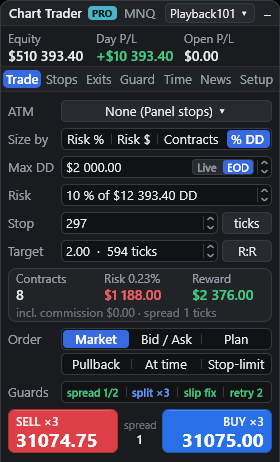
Calculate contracts from your chosen risk and stop distance, or set quantity directly. Contracts, estimated risk and reward show before you submit.
Account management
Switch accounts while positions remain open. View positions across accounts and navigate to the position you want to manage.
Each account keeps its own trading state during the indicator session. This is not automatic trade copying.
Per-position rules
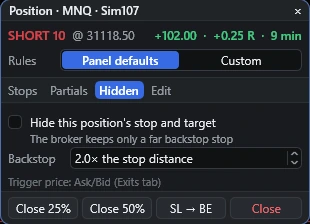
Open a position's rules to switch between panel defaults and custom stops, partials and hidden levels, or close 25%, 50% or move SL to break-even.
ATM or panel stops
Select a saved NinjaTrader ATM template or configure management rules in the panel.
Flexible entries
Enter at market or bid/ask, wait for a pullback, schedule an entry or use the planner.
Adjust the panel size
Resize your workspace. Minimize to compact entry controls, then to a simple header.
Trade management, live on the chart
Chart labels show entry, stop, target and partial levels, with money and R values. Panel-managed hidden stops can be paired with a separate broker backstop, a different protection level from the hidden stop.
The full NTP toolkit
NT Chart Trader Pro is an on-chart trading indicator for NinjaTrader 8 on Windows. It combines position sizing, visual entry planning, stop and target management, partial exits, account switching and configurable guards. Use panel-managed rules or your saved NinjaTrader ATM templates, with the controls beside the price action.
Trade / Sizing
Choose percentage risk, cash risk, fixed contracts or a percentage of your remaining trailing drawdown. Select the account basis, set the stop distance in ticks or points, and review contracts, estimated risk and reward before submitting.
Sizing includes configured commission. Minimum and maximum quantity settings constrain the result. Planned risk is an estimate; gaps, slippage and actual fills can change the outcome.
Trade / Entries
Use market and bid/ask entries, pullbacks, timed entries, stop-limit orders or the visual planner. Review entry, stop and target levels on the chart before placing a planned trade.
Set the target as R:R or in ticks or points, or turn the stop off and trade with a target only. Buy and sell controls show current prices and quantity, with the spread visible between them.
Stops / Break-even
Set up to four R-based triggers and the amount to lock at each stage. Choose a tick offset or an offset based on spread and configured commission. A manual SL to BE control is available for position management.
These rules set when NTP requests a stop change. A stop is not guaranteed to fill at the requested price.
Stops / Trailing
Choose ticks, ATR, candle, moving average, SAR, fractal or partial-level trailing. Moving-average trailing supports EMA and SMA. Configure activation, distance, step and buffer settings appropriate to your chosen mode.
For price-based trailing modes, choose updates every tick, every ten seconds or on a new bar. Partial-level trailing moves the stop to the previous partial level as exits fill.
Exits / Scale out
Configure up to ten partial-exit levels in R, ticks, price or percentage of the target, or use automatic levels. Close a percentage of the opening size, a percentage of the remaining position, or a fixed quantity. Configure profit and loss levels and optional moving levels.
Manual controls include 25%, 50% and 75% closes, long/short and profit/loss filters, pending-order controls and reverse.
Accounts / Positions
Switch the selected account while positions remain open. The positions list shows account and instrument labels, quantity, entry price and P/L. Click a position to select its account and manage it on the appropriate chart.
Visited accounts retain separate trading state during the indicator session. New actions target the selected account. This is account switching, not automatic trade copying.
Guard / Limits
Configure a maximum daily loss, profit target, maximum entries and equity floor or ceiling. Loss, profit and equity limits request account-wide closure and lock further NTP entries. The maximum-entry setting blocks additional entries after its limit is reached.
An instrument basket stop adds money-based profit and loss thresholds. These local controls do not replace broker or evaluation-provider limits and cannot guarantee a maximum loss.
Time & News
Restrict new entries to a local-time trading window, schedule a daily flatten or close after a set holding time. Scheduled tasks have day-of-week controls; buy and sell tasks use the Trade tab’s size, stop and target.
The News tab includes calendar filters and a news guard. Availability depends on the calendar data source. Check displayed events and times before relying on a news filter.
Setup / Execution
Set spread and quantity limits, split entries into multiple orders, configure rejection retries and set pending-order expiry. Slippage adjustment keeps configured stop and target distances relative to the actual fill.
Choose a saved ATM template when you want NinjaTrader to place and manage its bracket. ATM mode uses a fixed contract quantity; its template determines stop risk. NTP entry guards, schedule and news checks still apply.
Chart / Workspace
Chart labels show entry, stop, target and partial levels, with money and R values. Panel-managed hidden stops can be paired with a separate broker backstop. The backstop is a different protection level from the hidden stop.
Move and resize the panel, then minimize to compact entry controls or a header. Keep the owning chart and NinjaTrader running and connected for hidden stops and local automation to operate.
Setup / Pending orders
Enable panel pending-order cancellation when another panel entry fills, or trail pending orders at their configured distance from price. The planner includes a cancel level, stop-limit price and an entry-following magnet.
Drag supported planned-entry, stop and target levels on the chart. Panel and ATM orders keep their own management rules; pending controls do not turn NTP into a trade copier.
Tools / Review & reuse
Start from Scalp, Swing or Prop presets, then save your own sizing, stops, exits, guard, time and execution settings. Add draggable price alerts, take chart screenshots, or enable screenshots on position opens and closes.
Export today’s executions for the selected account and instrument to a CSV journal. Optional Shift-key shortcuts give access to buy, sell, close, break-even and planner actions on the chart under your mouse.
Break-even ladders, NTP trailing rules, partial exits and hidden stops belong to the Panel engine. With ATM selected, NinjaTrader manages the template’s stop and target rules.
Panel views
Review positions across accounts and open the selected position's custom hidden-stop settings.
Minimize the panel to keep the entry buttons visible while leaving more room for the chart.
Minimize again to leave just the header. Position levels remain visible on the chart.
Actual product screenshots on simulation accounts. They show the interface, not trading performance. Select any image to view it at full size.
Download to first simulation trade
A license is bound to one Machine ID. NTP checks the license online every few minutes; entries need a successful check within the last hour. A trial receives no extra day after expiry. Move it to a new computer yourself in the portal, twice per 12 months, or contact support. Release history is available in your customer portal.
Access
Request a private magic link in the customer portal. Your free 48 hours start the first time NTP runs on your computer. Paid plans use a one-time PayPal checkout.
Activate
Download from your portal, then use Tools > Import > NinjaScript Add-On. Add NTP to a chart. Copy your Machine ID from its activation notice, register it in the portal and select Check license.
Configure
Select a simulation account, set risk and stop distance, and choose Panel or ATM management. Test entries, stops, partial exits and account switching with your settings before trading live.
Pricing
Choose how long you want to use NTP. Each plan includes the order-entry and trade-management panel for NinjaTrader 8. One-time purchases. No automatic renewal.
365 days
A full year of access, including releases published during your term.
Choose 365 daysLifetime Best value
Perpetual license with no expiry date, including every future release.
Choose lifetimeEvery plan includes
NinjaTrader 8 on Windows required. Platform and brokerage services are separate. Questions? Talk to us about NTP.
A Windows desktop with NinjaTrader 8 installed and an appropriate NinjaTrader connection. NTP is a desktop indicator, not a browser trading platform.
NT Chart Trader Pro is independently developed and sold. It is not affiliated with, sponsored by, endorsed by, or supported by NinjaTrader. NinjaTrader is a trademark of its respective owner. References to NinjaTrader describe platform compatibility only. For NTP support, contact info@ntcharttraderpro.com. Product & risk disclosures
Select a saved NinjaTrader ATM template in NTP. ATM strategy management remains with NinjaTrader. Panel-managed stops provide a separate workflow.
Yes. The panel supports changing the selected account while positions remain open. Each account retains its trading state during the indicator session.
Hidden stops and local automation require the owning chart and NinjaTrader to remain running and connected. They are not broker-held protection. Test your setup in simulation before using it for live trading.
Choose a 30-day, 365-day or lifetime license with a one-time PayPal payment. No automatic renewal. Download the released NinjaTrader export from your portal after payment verification. Try NTP with a free 48-hour trial from the customer portal.
48 hours, full panel, no card. Start in simulation and decide with your own settings.